


Canva: AI Photo & Video Editor
4.8103.61K Reviews
App Specs
- Version
- 2.383.0
- Updated On
- License
- Free
- Downloads
- 500,000,000+
- Developer
- Canva
- Categories
- Art & Design
- Platform
- Android, iOS
Screenshots
 Analysis by AppCompare
I tend to notice Canva most when I’m trying to make something presentable quickly, not when I’m planning a big design project. That’s where its mobile app earns its place: it gives me a way to put photos, text, and visual elements together without starting from a blank canvas or needing a desktop design program. It’s a free art and design app from Canva, with optional in-app purchases ranging from $1.49 to $300 per item, so it’s worth checking whether the tools or content you want are included before building a whole workflow around them.
Where a quick design can get stuck
The speed of a template-based editor is also its main trap. A design can come together in minutes, but it’s easy to keep adding fonts, stickers, and effects until the result feels busy. I get better results by deciding what the main message is first, then changing only the parts that help it stand out. A small set of colors and one or two type styles usually looks more intentional than trying every option on the screen.
On a phone, fine adjustments can also take patience. Moving a small item when other elements are close together may be fiddly, and a layout that looks balanced on a compact screen can feel different when viewed larger. I recommend pausing to preview the whole design rather than judging it only while zoomed in on one detail. For text-heavy work, I’d keep the wording short and check line breaks before sharing.
Guides and Analysis on Canva: AI Photo & Video Editor
Before starting, check the project itself
When a project opens in an unexpected state, I first check that I’m in the right design and that I haven’t selected a background or a nearby layer instead of the object I meant to change. This sounds basic, but it prevents a lot of accidental edits. I also make a duplicate before trying a major layout change; that gives me a safe version to return to if the experiment doesn’t work.
Canva is rated for Everyone 10+, and the current version is 2.342.0, with Android support starting at version 6.0. Its average rating is 4.8 from around 24 million ratings, and it has passed 500 million installs. Those figures suggest broad appeal, but they don’t tell me whether a particular project will feel smooth on every device. If you’re installing it on an older phone, a practical first test is to open a small project and try the actions you expect to use before committing to a complicated edit.
Recovering a workflow without starting over
If an edit goes wrong, I avoid making several more changes in a hurry. I undo the last step, check the canvas, and then continue one adjustment at a time. For a design with many overlapping pieces, I find it easier to move or resize a single element, inspect the result, and only then make the next change. That keeps the cause of an unwanted shift clear.
For a project that will be reused, I treat the first version as a working master: duplicate it for a new post or event, then replace the photo and wording while preserving the layout. That’s useful for recurring announcements, small-business updates, or family invitations. It also reduces the risk of rebuilding a design from memory and ending up with slightly different spacing every time.
Worth Reading Before You Choose

Baby Panda World Brings Quick Play to Modern Phones, but Its Game Library Feels Busy

ESPN’s Live Game View Makes Following Close Games Easier

QuizzLand Review: A Good Fit for Short Trivia Breaks, Not Every Player

Basketball Stars: Multiplayer Is Fast, but Can It Recover When Matches Go Wrong?

WEBTOON Turns Phone Updates Into a Better Reading Routine

Link to Windows Runs on Shared Habits, Not Social Feeds
When the app may not be the cause
Not every pause or failed action means the design itself is broken. A complicated project can take more effort to handle than a simple image, and a slow connection can make online content or sharing feel less responsive. I try a modest project first, check that the connection is behaving normally, and avoid changing several things at once. If only one asset or one step causes trouble, I work around that item rather than discarding the whole design.
Canva works best for flexible, everyday visual communication, but it isn’t automatically the right tool for every job. If I need precise, repeatable control over detailed photo retouching, a dedicated image editor is usually a better fit. If my priority is a highly specific video-editing workflow, a dedicated video editor may offer a more focused set of controls. Canva’s advantage is getting a mixed visual task—such as a photo, title, and a few graphic elements—into one approachable project.
A practical verdict for everyday creators
I’d recommend Canva to people who regularly need social posts, simple invitations, presentation visuals, or quick promotional graphics and would rather adapt a starting layout than build everything by hand. It’s especially handy if you switch between a phone and a computer or want to show a draft to someone else. I’d skip it as my main tool if I needed meticulous professional retouching, intricate vector work, or a narrowly specialized editing setup.
For example, if I’m asked to make a last-minute notice for a community event, I can choose a layout, replace its key details, add a relevant photo, and check the finished composition before sending it to the organizer. The useful habit is to verify the small things—date, location, contrast, and text spacing—rather than assuming a polished template guarantees an accurate result. That simple final pass matters more than adding another decorative element.
Canva has earned its popularity by making common design tasks approachable, not by removing every trade-off. Templates help me get moving, but they can also make different projects look alike unless I personalize them with care. The broad library offers choice, though deciding what not to use is part of the design work. I’d start with one real task, keep the first project simple, and see whether its balance of convenience and control matches the way you like to create.
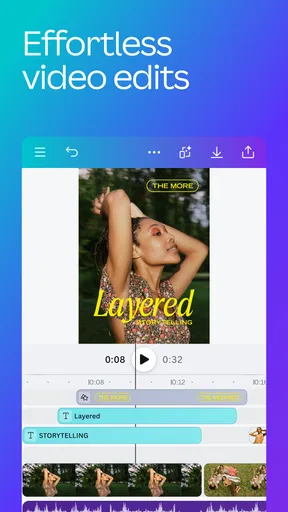
If you're like me and love getting creative with your photos and videos, you'll definitely want to check out Canva: AI Photo & Video Editor. It's like having a mini design studio right in your pocket! Let me walk you through what makes this app a go-to for anyone from beginners to seasoned designers.
Why Canva Stands Out
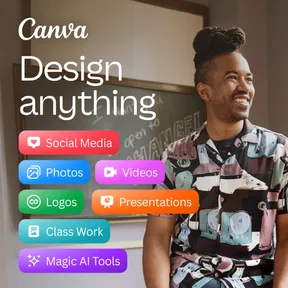
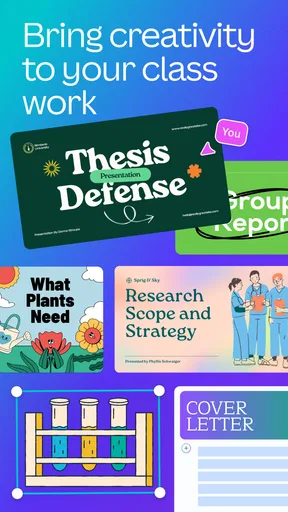
First off, the versatility of Canva is mind-blowing. Whether you need to whip up a quick Instagram story or create a professional-looking presentation, this app has you covered. And trust me, you don’t need a degree in graphic design to make something that looks like a million bucks.
Intuitive Interface
The interface is super user-friendly. I mean, even my grandma could navigate this thing. You just drag and drop elements, and there are plenty of templates to get you started. Whether you're editing a photo or making a video, the process is seamless. The learning curve is practically non-existent, which is a win if you ask me!
AI-Powered Features
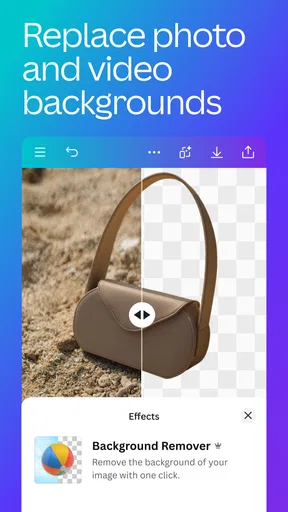
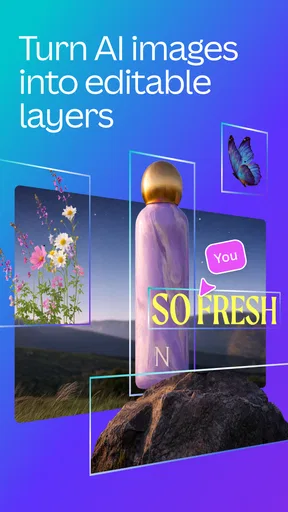
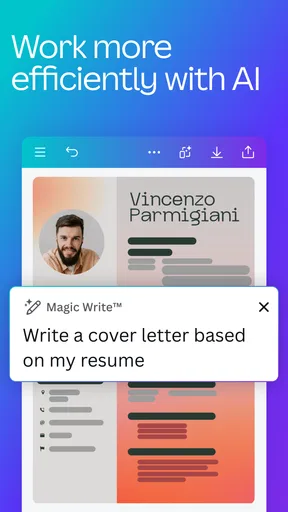
Now, here's where things get really cool. The AI features are like having a personal assistant. Need to remove a background? The AI does it in a snap. Want to color-correct a video? It’s just a tap away. The AI tools save you a ton of time and effort, letting you focus on being creative instead of getting bogged down in technicalities.
Endless Creative Possibilities
With Canva, your creative options are practically limitless. From fonts to filters, every element is customizable. You can even collaborate with others in real time, which is perfect if you’re working on a group project or need a second pair of eyes on your work.
Access to a Huge Library
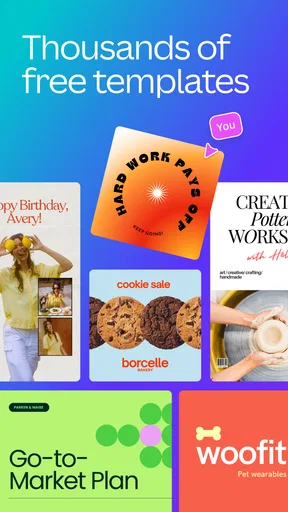
Don’t even get me started on the library of assets. We’re talking thousands of templates, stock photos, illustrations, and icons. Whether you’re making a meme or a marketing campaign, you’ll find what you need. Plus, the app constantly updates its library, so you’re never short of inspiration.
Convenience at Its Best
I love that I can start a project on my phone and finish it on my computer, or vice versa. The cross-platform functionality is a lifesaver, especially when you’re on the go. Plus, you can easily share your creations directly from the app, making it super convenient.
All in all, Canva: AI Photo & Video Editor is a must-have for anyone looking to up their design game. Whether you’re a professional or just someone who loves making things look good, this app is a game-changer. So go ahead, give it a try and unleash your inner designer!
Pros
- Intuitive interface for beginners.
- Wide range of templates available.
- Seamless collaboration features.
- Regular updates with new tools.
- Cross-platform compatibility.
Cons
- Limited features in free version.
- Occasional performance lags.
- Requires internet for full use.
- Some advanced tools are complex.
- Watermarking on free exports.
FAQs for Canva: AI Photo & Video Editor
What features does Canva: AI Photo & Video Editor offer?
Canva: AI Photo & Video Editor provides a wide range of features for both photo and video editing. These include customizable templates, AI-powered design suggestions, a vast library of stock photos and videos, text overlay options, and advanced editing tools like filters and effects. Whether you're creating social media posts, presentations, or marketing materials, Canva offers intuitive tools to make design easy for everyone.
Is Canva: AI Photo & Video Editor free to use?
Yes, Canva offers a free version that provides access to a plethora of features. However, there is also a Pro version that requires a subscription. The Pro version unlocks additional features such as premium templates, unlimited storage for your photos and assets, and advanced design tools. It’s perfect for users who need more comprehensive capabilities for professional use.
How user-friendly is Canva: AI Photo & Video Editor for beginners?
Canva is designed with user-friendliness in mind, making it extremely accessible for beginners. The interface is intuitive, with drag-and-drop functionality that simplifies the design process. Tutorials and guides are available within the app, helping new users quickly understand how to use different features and tools to create stunning visuals without any prior design experience.
Can Canva: AI Photo & Video Editor be used offline?
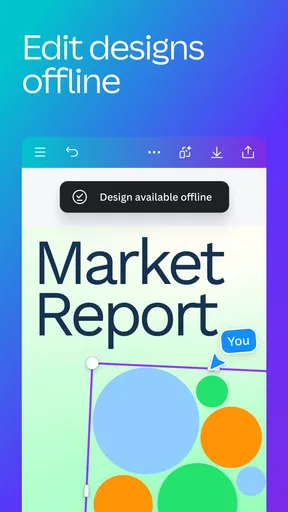
Canva primarily functions as an online tool, requiring an internet connection to access its full range of features, including its vast library of templates and assets. However, Canva does offer limited offline capabilities, allowing users to work on previously downloaded projects. For the best experience, using Canva with a stable internet connection is recommended.
What platforms is Canva: AI Photo & Video Editor available on?
Canva is available on both Android and iOS platforms, making it accessible on a wide range of devices. Additionally, Canva can be used on desktops via web browsers, allowing for seamless integration between mobile and desktop experiences. This cross-platform availability ensures that users can work on their designs wherever they are, at any time.


